Examples: query, "exact match", wildcard*, wild?ard, wild*rd
Fuzzy search: cake~ (finds cakes, bake)
Term boost: "red velvet"^4, chocolate^2
Field grouping: tags:(+work -"fun-stuff")
Escape special characters +-&|!(){}[]^"~*?:\ - e.g. \+ \* \!
Range search: properties.timestamp:[1587729413488 TO *] (inclusive), properties.title:{A TO Z}(excluding A and Z)
Combinations: chocolate AND vanilla, chocolate OR vanilla, (chocolate OR vanilla) NOT "vanilla pudding"
Field search: properties.title:"The Title" AND text
 
Answered
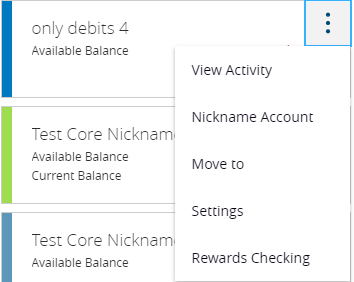
How to add extension link to account tile dropdown & navigate to the Account Details page

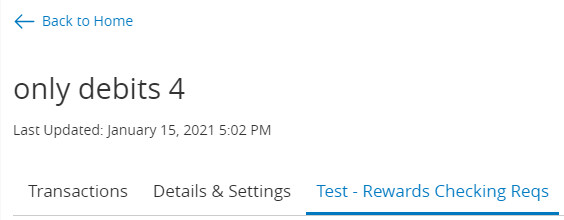
Hello! I'm working on an extension that I added as a tab in the Account Details page of UUX, but I also want to be able to navigate to this extension by clicking on a link in the account tile dropdown, similar to 'View Activity' and 'Settings' in the screenshot below. I was able to add an item to the dropdown (Rewards Checking), but when I click on it it does not navigate anywhere. How can I get the link to navigate to the extension (Test - Rewards Checking Reqs) in the Account Details page?

I read the following documentation, but perhaps I missed something: https://cdn4.onlineaccess1.com/cdn/base/tecton/v1.25/Documentation/guides/creating-new-outlets

Thanks in advance!

file

Account Details page:
file

Posted 3 years ago
Votes Newest

Answers


Hello Vivian,

Thank you for the question!

To get your extension to navigate to a dropdown, you follow a process similar to the one used to add the tab in the video on that page, using the same q2 tecton command.

The following steps will enable you to add the neccessary config.

  1. run q2 tecton
  2. Select your extension from the list
  3. Select the desired entrypoint for your extension from the list
  4. Select Option #4 at the prompt: UUX Extension Point Configurations (e.g. dropdowns, tabs, etc.)
  5. Select Option #1 at the prompt: Dropdowns
  6. ... Follow the prompts from there
  7. As with the tab config, it should make changes to your extension's config python file. Be sure to commit those!

I hope this helps!

Posted 3 years ago
0

Hi Kelsey - I appreciate your detailed response! I followed the steps you provided and completed the following after step 5, but the link is still not navigating to the extension :

  1. Enable extension to be in a dropdown in UUX
  2. Navigate the app to the extension
  3. Add as a link in the dropdown in the Account Card on the Landing page
  4. Select account type I want the link to the extension to appear for
  5. Entered Y to update the current environment tecton config

Is it possible that I'm missing something when committing the changes?

Thank you!

— Vivian Gomez   3 years ago